



Choose what you get notified about
Turn notifications on or off for email and your phone, and fix it when none arrive.
In the app, by email, or on your phone
Three different things, and they do not all carry the same messages.
| Where | What reaches you | Can you turn it off? |
|---|---|---|
| In Orsola — the bell | Everything | No. The bell always works while you are signed in. |
| Updates and alerts, to your registered address — but never alerts about new mail | Yes | |
| Push — the Orsola app on your phone | Only urgent things, and only when you are not already using Orsola | Yes |
That last row surprises people, so it is worth being exact. Push is a safety net for things you cannot afford to miss — running out of credits, a subscription about to lapse, a connected account that failed, a system alert, or new mail worth a look in a mailbox Orsola is watching for you. It is not how you hear about a finished chat reply or a scheduled result. Those go to the bell, and to email if you have it on.
Alerts about new mail are switched on per mailbox, not here: use Notify me on the account in Integrations. Connect your email explains what they cover.
Push also only fires when you are not currently connected to Orsola, so that being at your desk does not set your phone off.
Turn each one on or off
- Open Settings.
- Under Notifications, use Email notifications and Push notifications.
- The change saves as you make it — there is nothing to submit.
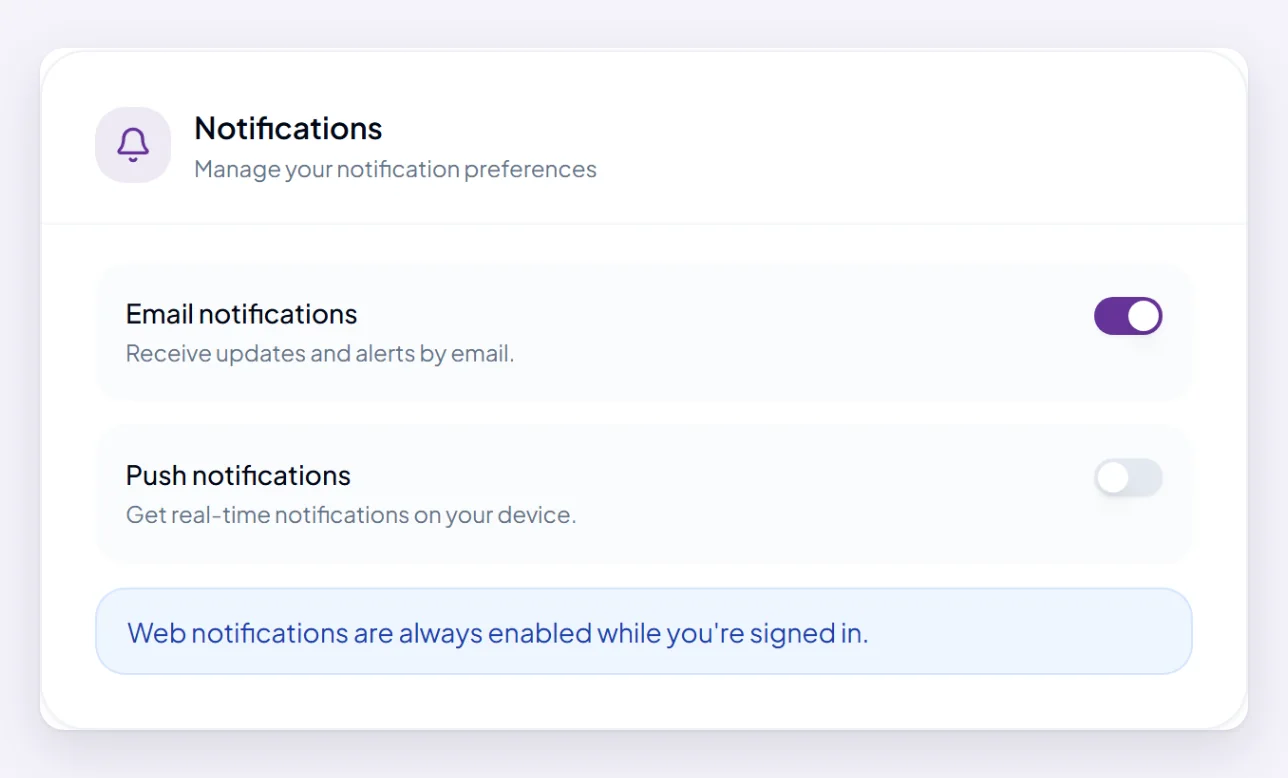
If email is becoming noise, turning that one off is the fix. Nothing is lost by it: everything is still on the bell.
The Nutrition reminder is set in Nutrition, not here. It has its own switch and its own time under that agent's Settings tab, and it is off unless you turned it on — see your settings, and your nutrition data.
Allow notifications on your device
Push needs permission from the device, which is asked for once, in the Orsola app on your phone. Turning the setting on here does nothing on its own if you said no to that prompt.
If you refused it, the app cannot ask again — you have to allow notifications for Orsola in your phone's own settings, then turn the setting back on here.
In a web browser there is no separate prompt to accept: the bell is how you are told, and it needs no permission.
If you are still not getting them
- Check what you expected to arrive. If it was a chat reply or a scheduled result, push was never going to carry it. Look at the bell, or turn on email.
- Check the email address on your profile is one you actually read, and look in spam or junk — a first Orsola email often lands there.
- Check the setting is actually on, on the device you are looking at. Reopen Settings and confirm rather than assuming.
- Check notifications are allowed for Orsola in your phone's settings, if you are waiting on push.
- Check the thing you were waiting for actually finished. No notification and no result is a different problem from a missing notification — my reminder did not run covers it.
Where to go next
Where scheduled results turn up explains where a finished job puts its result, which is the other half of this.