



Choose how Orsola sounds
Pick the voice for spoken conversations and for reading answers aloud.
Two different voices
Orsola has two ways of speaking, and they are configured separately. Knowing which is which saves changing the wrong one:
| Realtime Voice | TTS Voice | |
|---|---|---|
| Used for | Live spoken conversation | Reading an answer aloud |
| Feels like | Talking to someone | Something being read to you |
| Started by | The microphone in the message box | Asking for an answer to be read out |
Both are on every plan, Free included. Neither voice is something you upgrade to reach — what they cost is credits, and audio is the expensive kind.
If you have changed a voice and the one you actually hear is unchanged, this is almost always why — you changed the other one.
Set them
Both are in Settings, under Orsola's language and voice:
- Realtime Voice — the voice for spoken conversations.
- TTS Voice Profile, and within it the specific TTS Voice — for reading answers aloud.
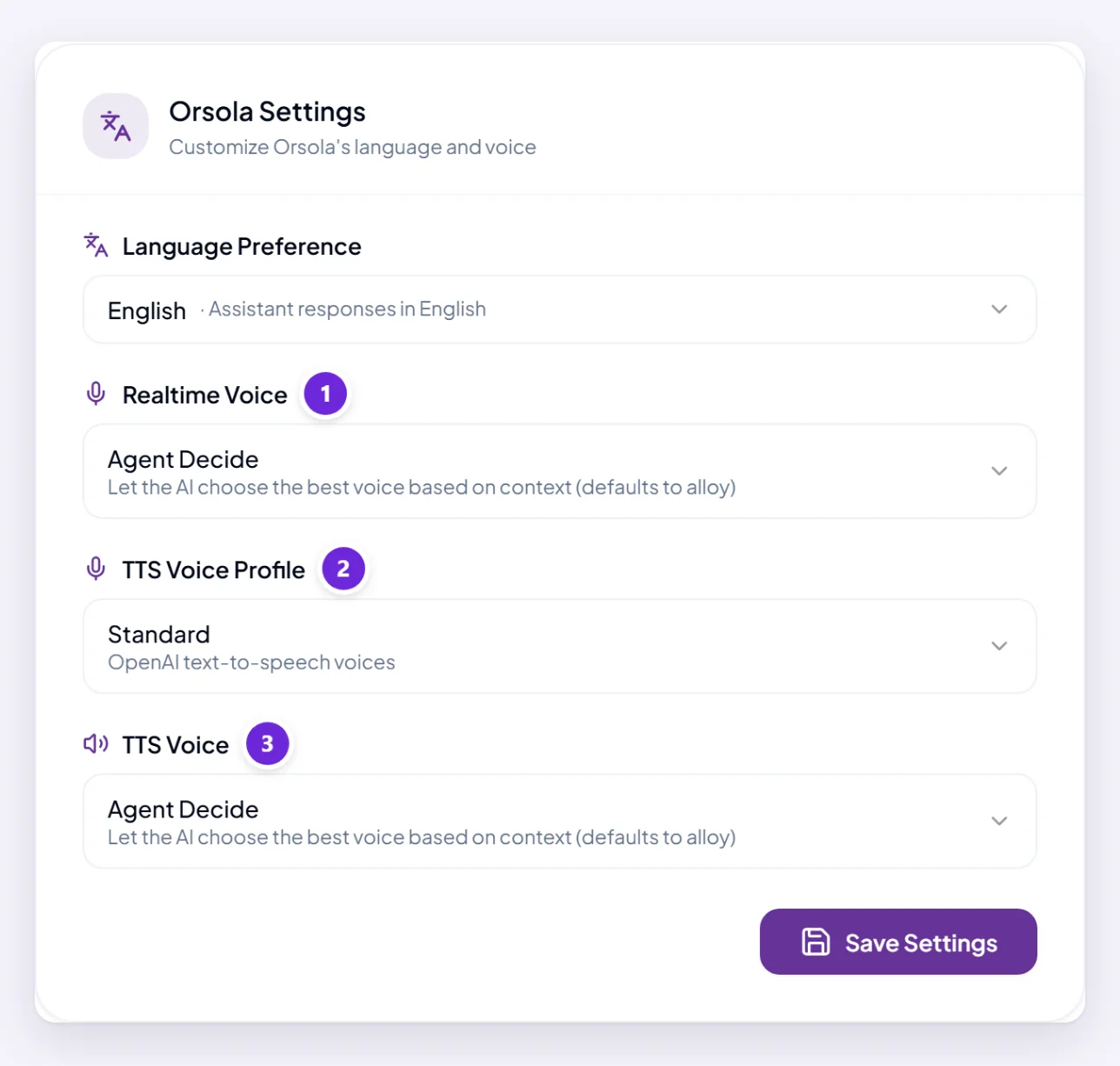
Changes apply to what comes next, so start a new spoken session to hear a new realtime voice.
Picking one
Listen to a couple in the situation you will actually use them. A voice that sounds pleasant in a quiet room can be hard to follow through a laptop speaker in a busy office, and one that seems plain reads long answers better than one with more character.
Pace matters more than timbre for anything long. If you mostly use voice for quick exchanges, pick what you like the sound of.
Voice and language
The interface language and the voice are separate settings. Changing the app to French does not change the voice, and a voice may not suit every language equally — worth checking if you use Orsola in more than one. Change the language covers the rest.
If you cannot hear it, or it cannot hear you
That is a permission or device problem rather than a voice setting — Orsola can't hear you? is the page.
Where to go next
Talk to Orsola out loud for spoken conversations, including how to interrupt mid-sentence.