



Connect your email
Connect Gmail or Outlook so Orsola can search, draft, and send with your say-so — and tell you when new mail needs you.
Gmail or Outlook
Both are supported, and they do the same things — connect whichever your mail actually lives in.
| Gmail | Outlook mail | |
|---|---|---|
| Read and search your mail | Yes | Yes |
| Write and send | Yes | Yes |
| Pull an attachment out of a message | Yes | Yes |
| Archive, label, move or delete | No | No |
That last row is worth reading before you set expectations: Orsola reads and writes mail, it does not organise it. Nothing in your inbox is moved, filed or deleted on either provider.
Connect both if you have both. Each counts separately against your plan's connected-account allowance.
Connect it
- Open Integrations.
- Choose Connect on Gmail or Outlook Email.
- You are sent to Google or Microsoft to sign in. Read the permissions on that screen — that is where you approve what Orsola may do, and it is the same list described above.
- Approve, and you are returned to Orsola with the account connected.
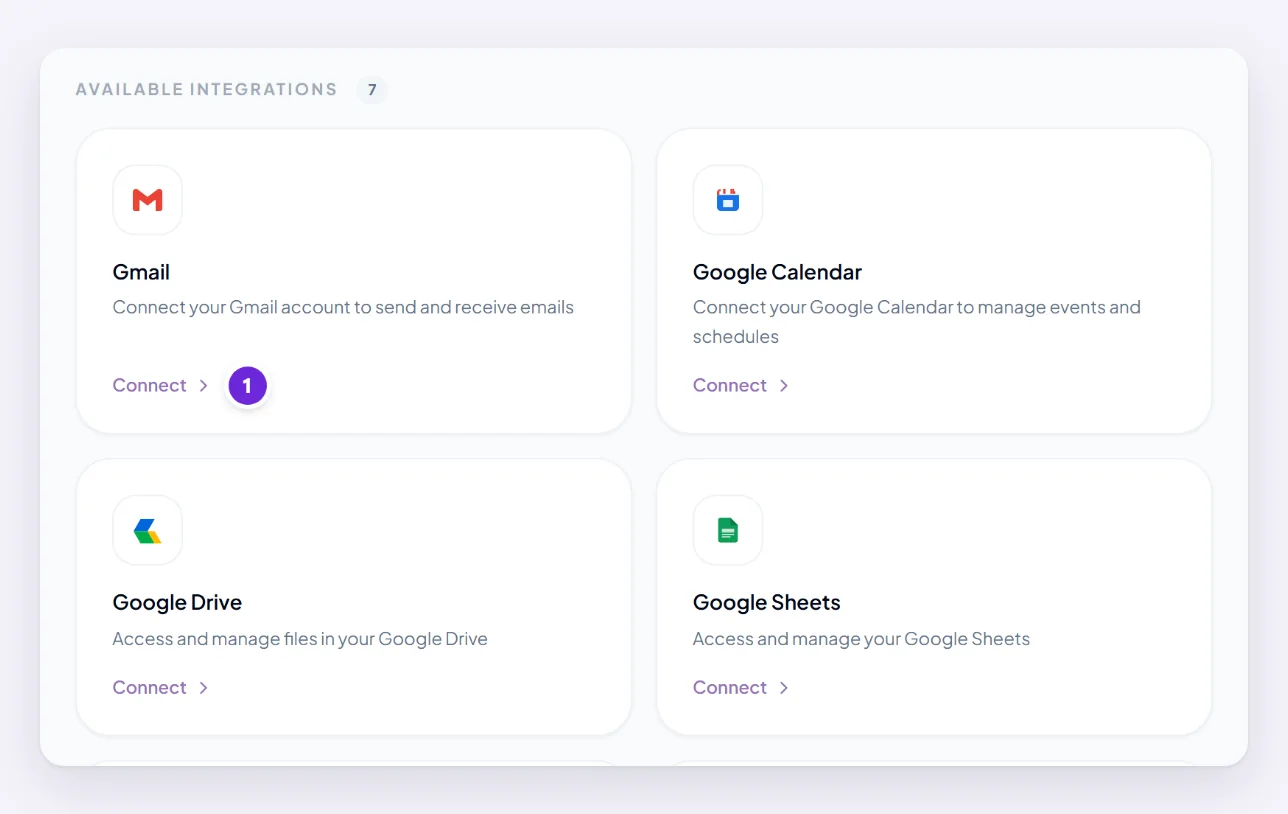
Signing in to Orsola with your Google account is not the same as connecting Gmail. The first proves who you are; only this gives Orsola access to your mail.
What Orsola can do with your mail
- Search it. "Did anyone from the Vance account reply about the invoice?" — across the whole mailbox, not just what is on screen.
- Summarise it. "What came in overnight that actually needs me?"
- Draft replies in your words, with the context of the thread it is replying to.
- Send, when you ask it to.
- Use it alongside everything else — a request that spans your mail and your calendar is one question rather than two.
Nothing is sent without your say-so
Sending mail is the thing people worry about, reasonably. The rule is straightforward: Orsola writes the message, you send it.
"Send Priya the summary and say I'll call Thursday" gets you the finished message with Priya in the To field and the text written — and a button. It goes when you press it, not before, and it is the recipient line that is worth a second's attention rather than the words.
Nothing sends on a timer, on a guess, or in the background — including from a mailbox Orsola is watching for you, below. When Orsola checks with you first sets out the boundary in full.
Hear about new mail without asking
Orsola can keep an eye on a mailbox and tell you when something arrives that needs you. It is off until you turn it on, and each mailbox has its own switch.
- Open Integrations.
- On the connected Gmail or Outlook account, switch Notify me on. On a narrow screen it is in the account's ⋯ menu instead.
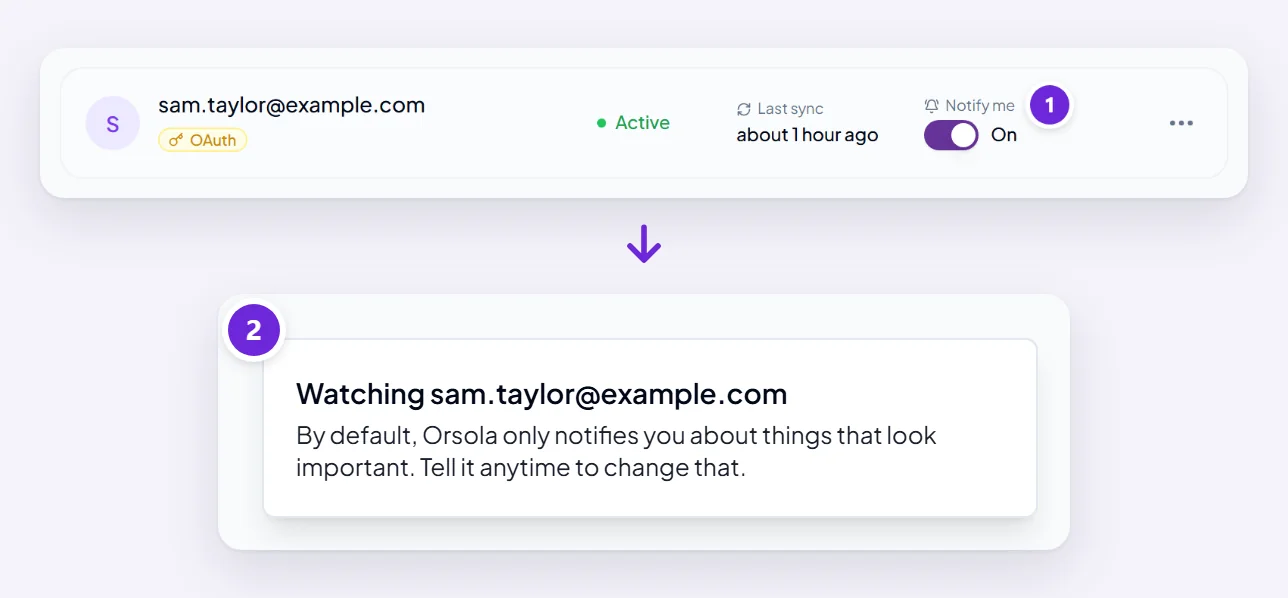
The switch only appears on an account that is connected and active. Every few minutes from then on, Orsola checks that inbox for new mail. Mail that was already there when you switched it on is left alone.
What it passes over without reading: your own sent mail and drafts, automated no-reply senders, and — in Gmail — the Promotions and Social tabs and mailing-list mail.
What counts as worth telling you about. By default, mail that asks something of you: a direct question, a deadline, a meeting request, or money owed or requested. Newsletters, marketing, receipts that need nothing, automated notifications and mail sent to a list do not count. To change that, tell Orsola in an ordinary conversation — "Only tell me about new email from clients." What you say replaces the default rather than adding to it, so say the whole of what you want.
What it does with one that counts. Orsola reads the whole message. If it needs a reply, it writes one and saves it as a draft in that mailbox, for you to check and send. If it looks like an expense, it suggests logging it. Otherwise it sums up what arrived and what it asks of you.
What it cannot do on its own: send that draft, change your calendar, call or text anyone. If the email asks for any of that — or for money, or your details — Orsola tells you about the request instead of acting on it.
Where you hear about it. A notification, New email worth a look, arrives on the bell. Choosing it opens the Task agent, where the result is a card titled New email in followed by the mailbox. If push notifications are on and you are not using Orsola at the time, it reaches your phone too. It never arrives by email. Orsola may read a message and decide it is not worth interrupting you after all — then there is no notification.
What it costs. Mail it passes over costs nothing. Each message it reads to decide uses a small amount of credits, and one it acts on uses about what a scheduled job does.
Turning it off. Switch Notify me off. Deactivating the account pauses it until you activate the account again; revoking the account removes it, so a reconnected account starts with it off.
If the notifications stop. Orsola switches it off by itself when the connection stops working — after a password change, or access removed at Google or Microsoft — and it does not tell you when it does. Check that the switch still reads On; if it does not, reconnect the account if needed and switch it back on.
If the connection fails
- You cancelled at the provider's screen — start again and approve.
- You approved but Orsola still cannot read mail — check that you approved every permission rather than declining part of the list. Reconnecting and approving in full fixes it.
- It worked and then stopped — connections lapse when a password changes or an authorisation expires. Reconnect it from Integrations.
- Your organisation blocks it — a work Google or Microsoft account can be configured to refuse third-party apps. That refusal comes from your IT administrator, not from Orsola, and only they can change it. A personal account will connect normally.
Where to go next
Connect your calendar is the natural pair — mail and calendar together is where most of the value is.