



When Orsola checks with you first
The things Orsola will never do without asking, and what the confirmation looks like.
What always needs your confirmation
The rule in one line: anything that leaves your account or cannot be taken back is shown to you first, and happens only when you press the button.
That covers a fixed list, and the list is the point — it does not depend on how clearly you asked:
- Sending an email. You see the recipient, the subject and the text before anything leaves.
- Creating, changing or deleting a calendar event. Attendees get notified, so this one is shown even when the request was unmistakable.
- Placing a call from your Orsola number. You see the number and what the call is for.
- Replacing or deleting a file. The version that would be overwritten is named.
- Anything that costs a noticeable number of credits — a long video, indexing a large file for search. You are told roughly what it will cost before it starts.
On top of that fixed list, Orsola comes back to you whenever the request is ambiguous — two people called Chris, no obvious recipient, an unclear date — rather than picking for you. A suggestion is also just a suggestion: a proposed meeting time is not booked until you accept it.
A caller cannot bypass any of this. Someone ringing your number can ask for something; you are still the one who decides. Nothing a stranger asks for changes your calendar, mail or files on their say-so.
What happens without asking
Reading is not confirmed at all. Searching your mail, looking at your calendar, opening a file you gave it — these happen as part of answering, because that is what you connected the account for. Orsola only looks at what your request needs; it does not browse your mail because you asked something unrelated.
Writing something that stays inside Orsola is not confirmed either. Drafting a reply, producing a document, writing up a meeting, setting up a reminder you asked for — none of that reaches anybody else, so none of it is gated. The confirmation exists for the step that makes it public.
Nothing at all happens on a schedule you did not set. Every action traces back to something you asked for — now, when you set up a scheduled job, or when you switched Notify me on for a mailbox.
A watched mailbox is the one place Orsola works in the background, and it is read, never answered for you. When new mail needs a reply, the most Orsola does is leave a draft in that mailbox. It does not send it, book or change anything in your calendar, or call or text anyone — whatever the email asks. See connect your email.
What you see before you confirm
Usually a box in the conversation with the details filled in and buttons on it — the recipient and the text of an email, the time and attendees of a meeting, the file about to be replaced.
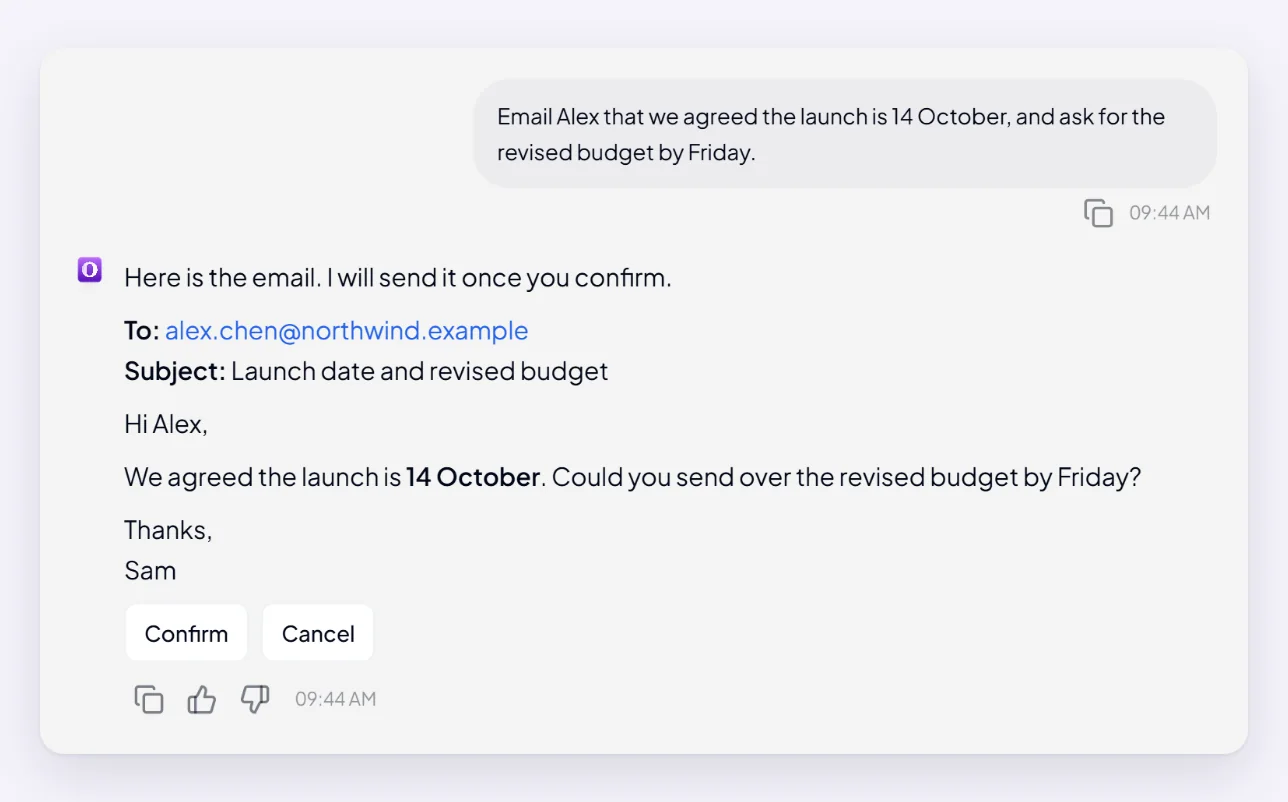
Nothing on one of these happens until you press the button. A box you never answered is not stuck or half-done; it is waiting, and it will keep waiting. If you ignore it and carry on, the action simply never happened.
Read the details rather than the summary line before confirming — the recipient is the field worth checking twice.
Changing your mind after you have confirmed
Be clear-eyed about this: once something is done, Orsola cannot take it back. A sent email is sent. It has no more power to unsend it than you do from your own mail app.
What you can do afterwards depends on the thing, not on Orsola:
- A calendar event can be moved or deleted — ask, and it will.
- A file it created can be deleted in Drive or OneDrive as normal.
- A sent email can only be followed by another email.
If you want a firmer boundary, disconnecting the account stops everything immediately — see review, reconnect, or remove a connection.
Where to go next
What connecting an account lets Orsola do has the per-provider list of what is and is not possible in the first place.