



Review, reconnect, or remove a connection
See what is connected, check what each one may do, reconnect a broken one, or cut it off.
See everything that is connected
Open Integrations. Connected accounts are listed together at the top, with everything still available to connect underneath.
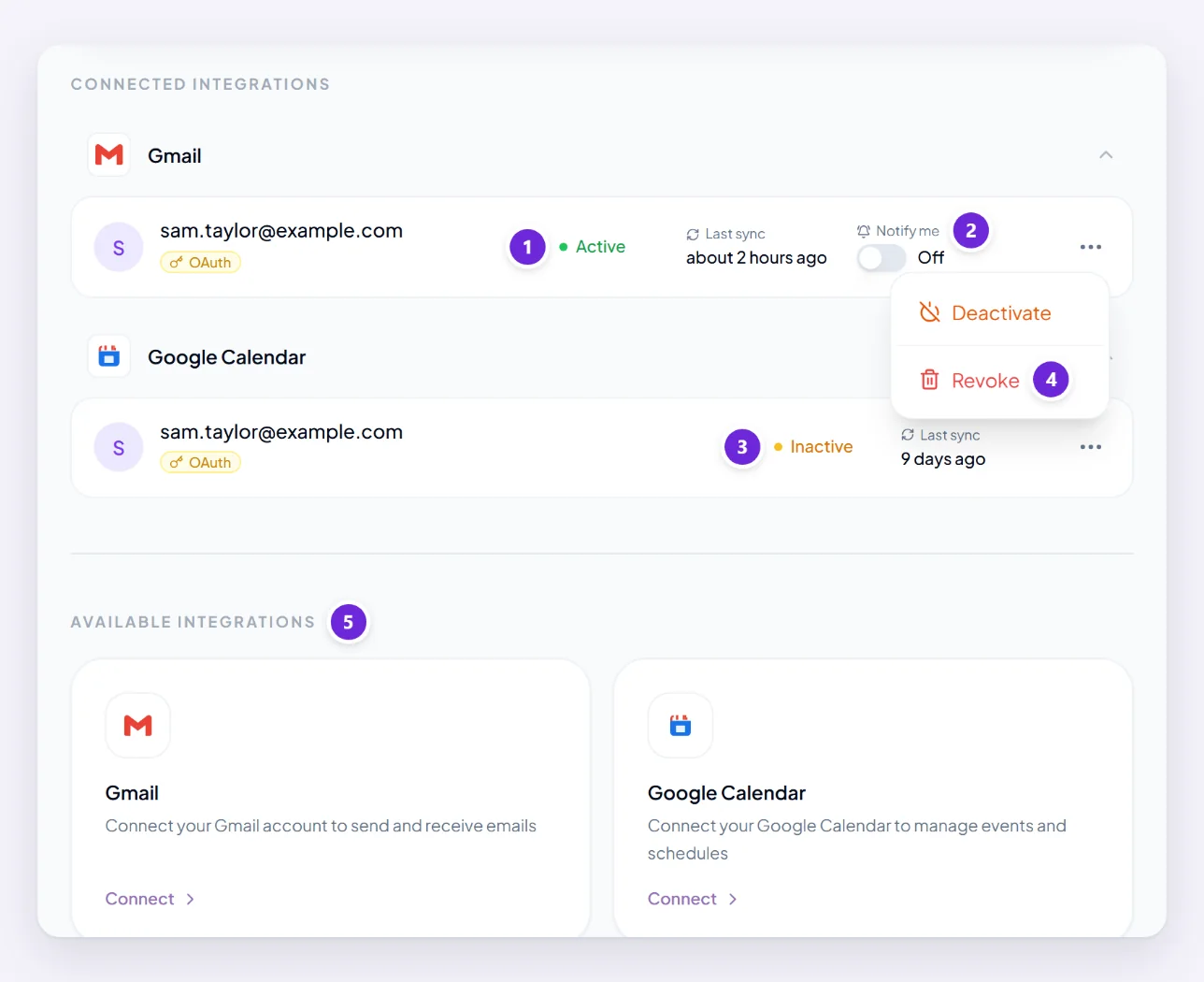
This page is the whole picture. If an account is not on the connected list, Orsola has no access to it, whatever you may have approved somewhere else in the past.
Turn email alerts on or off
A connected, active Gmail or Outlook account also has a Notify me switch. With it on, Orsola checks that inbox every few minutes and tells you when new mail needs you; with it off, it only reads that mailbox when you ask. It starts off. On a narrow screen the switch is in the account's ⋯ menu. Connect your email covers what it looks for and what it does.
Check what each one is allowed to do
Each connection shows what it was granted. Worth a look if you are not sure why Orsola can do one thing with an account and not another — the permissions differ by provider, and what connecting an account lets Orsola do has the full table.
You are also shown this before you approve anything. Nothing is granted quietly.
Reconnect one that stopped working
Connections lapse. Changing your password, revoking access at the provider, or an authorisation simply expiring will all do it, and the symptom is usually indirect: a scheduled job stops producing anything, or Orsola says it cannot reach your mail.
- Open Integrations and look for a connection flagged as needing attention.
- Connect it again and approve the same permissions.
- If a scheduled job had been switched off while it was broken, switch that back on — see my reminder did not run.
- If the mailbox had Notify me on, check it still does. Orsola switches it off, without telling you, when a connection stops working.
Disconnect, and what that stops
Open the connection's ⋯ menu and choose Revoke. You are asked to confirm, because it takes effect immediately:
- Background syncing stops.
- Email alerts for that mailbox stop, and the Notify me setting is removed with the connection.
- The saved credentials are removed from Orsola.
- The permission you granted is withdrawn, so no further data can be shared.
What it does not do: it does not delete your conversations, your files, or anything Orsola already produced, and it does not touch anything in the account itself. Mail Orsola sent stays sent; events it created stay in your calendar.
Anything that depended on that account stops working until you reconnect — scheduled jobs that read your mail included. A reconnected mailbox starts with Notify me off, so switch it back on if you want the alerts.
If you only want to pause an account rather than remove it, choose Deactivate in the same menu. Its email alerts pause too, and pick up again when you activate it.
Remove Orsola's access from the other side too
Revoking in Orsola already withdraws the permission at the provider, so this is a belt-and-braces step rather than a required one. If you want to see it for yourself, or you are cleaning up after using several accounts:
- Google — Google Account, then Security, then "Your connections to third-party apps & services".
- Microsoft — your Microsoft account privacy settings, under apps and services that can access your data.
Doing it there and not in Orsola leaves a connection that looks present but no longer works, so if you go that route, revoke it in Orsola as well.
Where to go next
If a connection keeps dropping out after you reconnect it, that is worth reporting rather than repeating — get in touch with the provider name and roughly when it started.