



Connect your files
Connect Drive, OneDrive, or Sheets so Orsola can use your stored files without re-uploading.
Google Drive, OneDrive, or Google Sheets
Three separate connections, and they do not have the same reach. This is the single most important thing on this page:
| Connection | What Orsola can reach |
|---|---|
| OneDrive | Your files — it can search across them and change them |
| Google Sheets | Your spreadsheets — reading and editing |
| Google Drive | Only individual items handed to it — not your Drive as a whole |
Google Drive is deliberately the narrowest. Orsola is granted access to specific items rather than to everything, so it can work with files it created for you and files you have specifically opened with it, and it genuinely cannot see the rest. That is a privacy decision, not a fault.
You can check this rather than take our word for it. The permission Orsola asks Google for is the one Google calls drive.file, which covers only files an app created or that you handed to it — not drive.readonly and not full Drive access. It is named on the Google consent screen when you connect, and you can see it afterwards in your Google account's list of connected apps.
Connect it
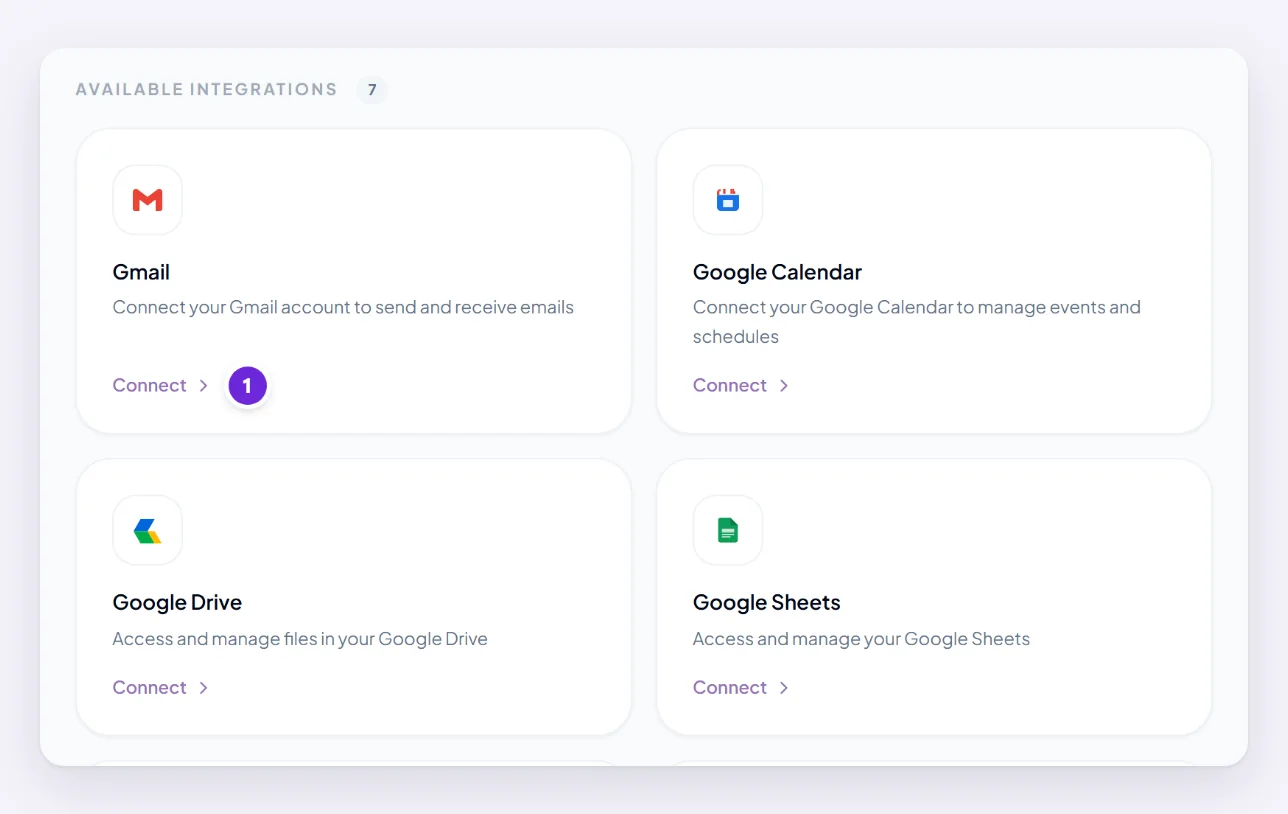
- Open Integrations.
- Choose Connect on Google Drive, Microsoft OneDrive or Google Sheets.
- Sign in at Google or Microsoft and approve the permissions shown.
Each is a separate connection and each counts against your plan's allowance.
Use a stored file in a conversation
There is no file picker in the message box for these. You ask, and Orsola fetches:
"Find the spreadsheet called Q3 Budget in my OneDrive and tell me which category grew most."
Naming the file and the place helps. So does saying what you want out of it, rather than just naming it.
For anything in Google Drive that Orsola has not been given, download it and attach it from the message box instead — see add a document, photo, or spreadsheet. That always works, whatever the connection can reach.
Save something Orsola made back to it
Ask, and it uploads: "Save that as a document in my Drive." When it succeeds you get a box with a link to open what was created.
Two things worth knowing. Orsola reports what actually happened rather than assuming — if an upload fails, it says so rather than claiming success. And it will not quietly overwrite: an existing file is reported as existing rather than replaced.
If a file cannot be found
- It is in Google Drive and was never handed to Orsola. The commonest case by far, and it is expected behaviour rather than a bug. Attach a downloaded copy instead.
- It is in a different account from the one you connected.
- The name is not quite what you think. Try a distinctive word from inside the document instead of the filename.
- The connection lapsed. Check Integrations for anything asking to be reconnected.
A "cannot find it" from Orsola means it could not see the file — not that your Drive is empty or the file does not exist.
Where to go next
File will not upload, or Orsola ignored it? covers the attachment side of the same problem.