



Sign in
Sign in with an email address or with Google, Microsoft, or Apple.
Sign in with your email and password
- Open the sign-in page.
- Enter the email address you signed up with, and your password.
- Choose Sign in.
If you have two-step verification switched on, you are asked for your six-digit code next. A backup code works there too if you cannot reach your authenticator app.
You have to have confirmed your email address before this works. If you never clicked the link in the confirmation email, sign-in will tell you so — cannot sign in? has the fix.
Sign in with Google, Microsoft, or Apple
Choose the button for the provider you signed up with. You are sent there to sign in, and returned to Orsola already signed in — there is no Orsola password involved at any point.
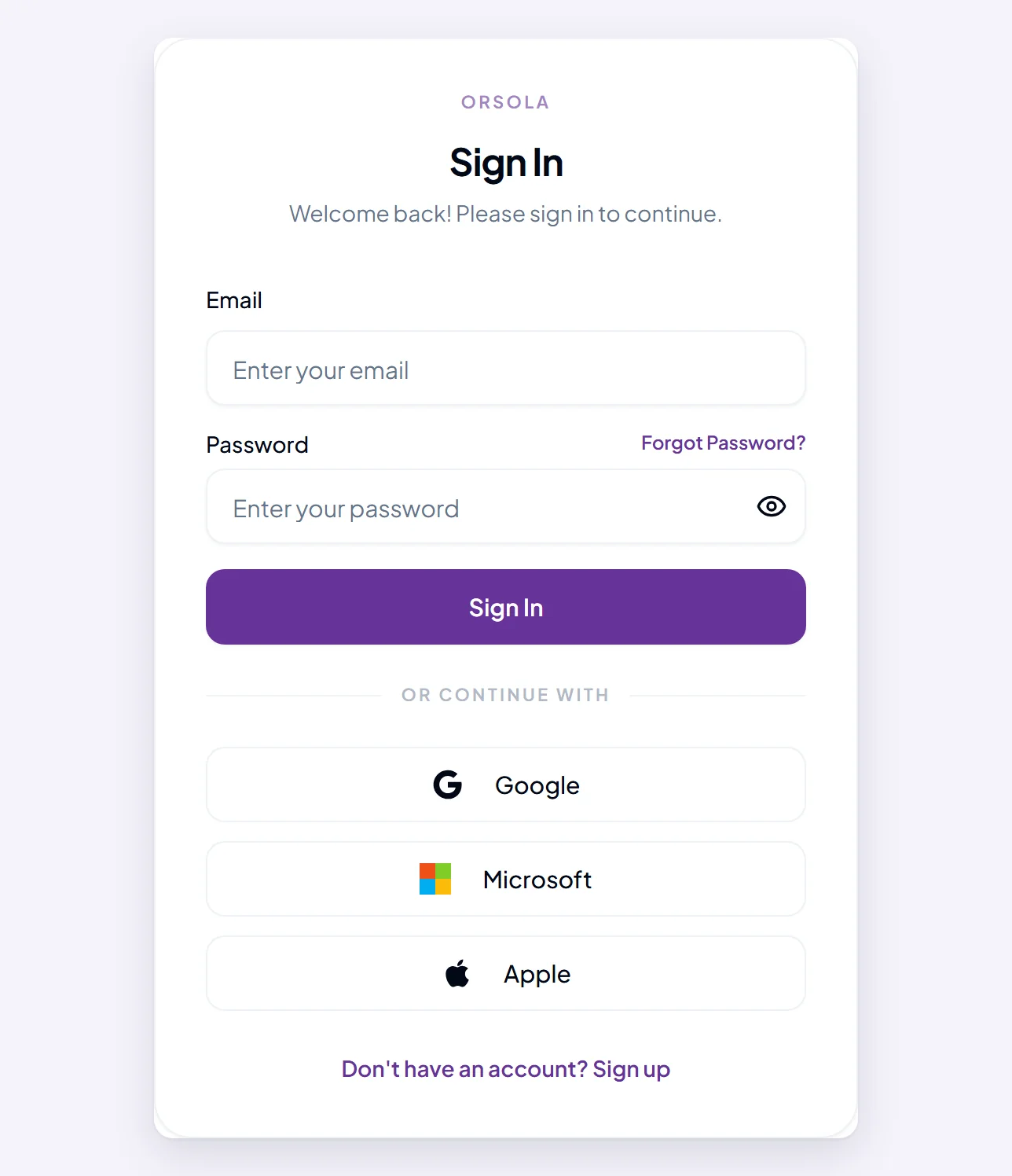
Use the same method you signed up with. An account created with Google has no Orsola password, so typing your Google address and a password on the sign-in form will not work, and no password reset will help. Orsola tells you as much if you try: "This account was created with social login. Please use the social login option."
Signing in with Google is only proof of who you are. It does not give Orsola access to your Gmail — that is a separate connection you make deliberately, and you can read what it covers in what connecting an account lets Orsola do.
Staying signed in
You stay signed in on a device for 30 days without having to type anything again. Orsola quietly renews your session in the background while you are using it, so an ordinary working week never interrupts you.
After 30 days without signing in, or if you sign out deliberately, you start again from the sign-in page. Signing out on one device does not sign you out on the others.
On a shared or public computer, sign out when you finish. Closing the tab is not the same thing.
Where to go next
If sign-in is not working, cannot sign in? goes through the five causes in order. To change or reset your password, see change or reset your password.