



Choose your recording options
Live transcript, speaker names, translation, and spoken language — what each does and costs.
Set them before you start
All four are on the screen you see before a meeting starts — the one headed Start a meeting with AI transcription and analysis — and they apply to the recording you are about to make. You cannot switch them on halfway through, so it is worth ten seconds before you press Record.
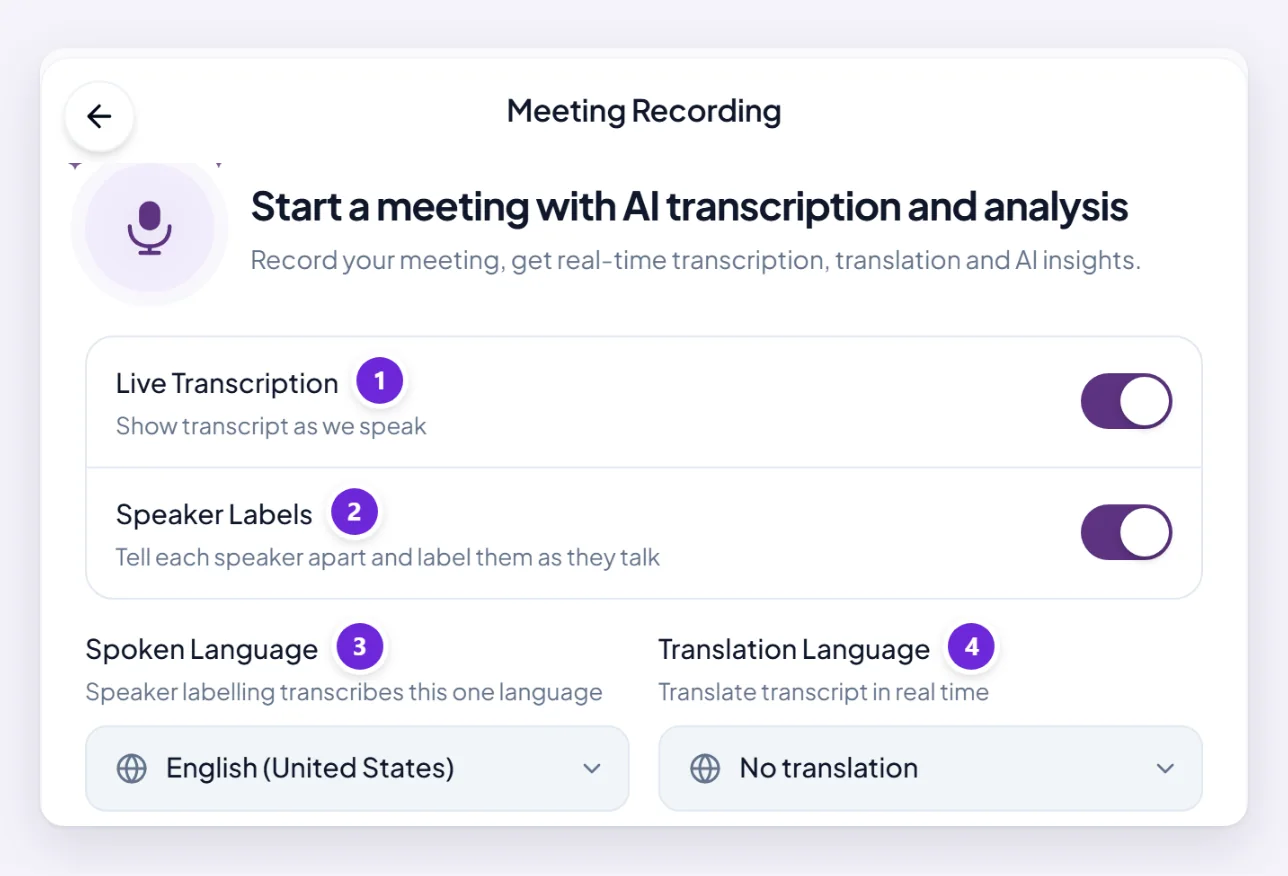
The important dependency first: speaker labels and translation are both built on live transcription. With live transcription off, neither is available — Orsola simply transcribes the recording after the meeting ends.
The language being spoken
Spoken Language tells Orsola what it is listening to.
This matters most when speaker labels are on, because that mode transcribes one language. Anything said in a different language will not come out right. A meeting that switches between two languages is the case to be careful with: pick the one most of it is in, and expect the rest to be poor.
Live transcript on or off
Live Transcription shows the text as people speak, rather than producing it afterwards.
| Live transcription on | Off (standard) | |
|---|---|---|
| When you get text | As it happens | After the meeting ends |
| Speaker labels | Available | Not available |
| Translation | Available | Not available |
| Needs a steady connection | Yes, throughout | No |
| If it is interrupted | You keep the text so far | Nothing may be processed |
On a patchy connection, standard mode is the more reliable choice. On a good one, live transcription is better in every way that matters.
Naming who is speaking
Speaker Labels tells people apart by voice and marks each contribution. They come out as "Speaker 1", "Speaker 2" and so on rather than by name — Orsola does not know who anyone is — but the same person keeps the same label all the way through, so a transcript stays readable and you can map the labels to names yourself afterwards.
It works best when people take turns. Heavy talking over each other is where it struggles, and where you will see contributions attributed to the wrong number.
Translating as it goes
Enable Translation, plus a Translation Language, gives you the transcript in another language in real time. While it runs you will see Translating to … on screen.
It translates the transcript; it does not change the recording. The audio is still whatever was actually said.
What each option costs you
Anything with audio in it is the most credit-hungry thing Orsola does, and each option here adds work on top of the recording itself:
- The recording and its transcript is the bulk of the cost, and scales with length. An hour-long meeting is a real expense against a monthly allowance.
- Live transcription costs more than transcribing afterwards, because the work happens continuously rather than once.
- Speaker labels and translation each add processing on top of that.
Nothing here is expensive for a short meeting. If you record several long ones a week with everything switched on, that is the thing to watch on check your balance and usage — meetings show under Audio & Transcription.
Where to go next
Read the transcript and get the summary is what you do with the result.