



Record a meeting
Start a recording, see it running, and stop it safely — including if it gets interrupted.
Before you start
- Recording is on every plan, Free included. There is nothing to upgrade first.
- Your device needs a microphone, and the browser will ask permission the first time. If you refuse it, the prompt does not come back and recording will not start — you have to allow it in the browser's own settings.
- Orsola records what your microphone can hear. For a video call, that means the meeting needs to be coming out of your speakers, not headphones, or the other people will not be captured.
- Tell people you are recording before you start. Before you record other people covers why that matters.
Start recording
- Open Meeting in the sidebar.
- Check the options if you want live transcript, speaker labels or translation — they have to be set before you start, not during. See choose your recording options.
- Say out loud that you are about to record, and give people a moment to object. Orsola does not announce it for you, and in some places recording without telling people is against the law — before you record other people is a two-minute read worth having done once.
- Choose Record. You will see Preparing meeting workspace…, then Starting Meeting…, and then it is running.
Start it a few seconds before the conversation does. The beginning of a meeting is usually where the agenda gets set, and it is the part people most often lose.
What you can do while it is running
- Pause and Resume — for a break, or something you would rather not capture. The recording continues as one meeting rather than splitting in two.
- Watch the live transcript, if you turned it on, appearing as people speak.
- Save TXT takes a copy of the live transcript as it stands, without stopping anything.
You do not have to sit and watch it. The recording keeps going while you work in the meeting itself.
Stop and save
Choose Stop Recording. It shows Finishing… while it closes the recording off, then the meeting moves to Processing while the transcript is produced.
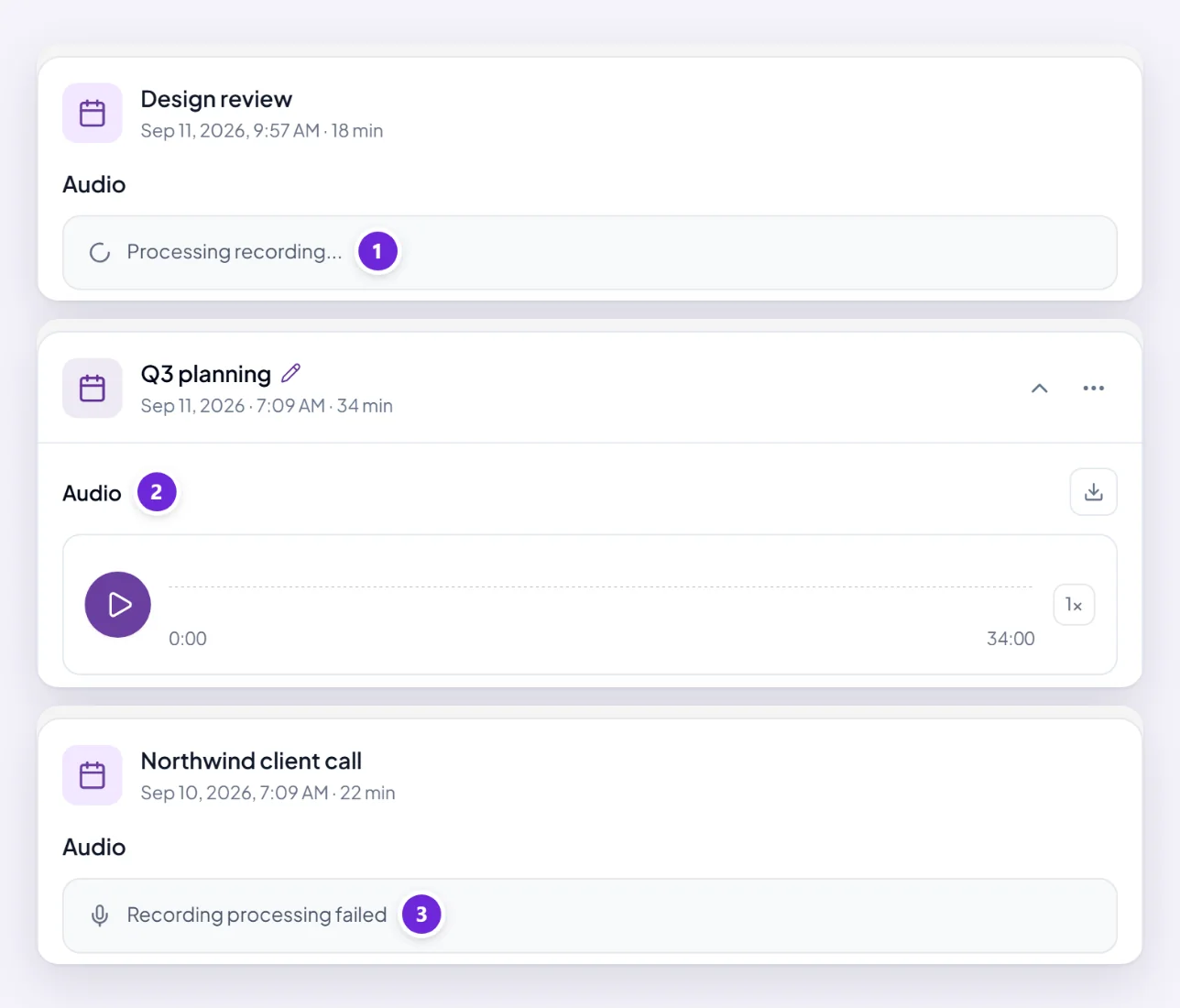
Processing takes longer for longer meetings, and you do not have to wait for it — close the tab and come back. When it is done the meeting shows Completed and the transcript, summary and audio are all there.
A meeting marked Failed did not process. That is not the same as lost audio — see below.
If the recording was interrupted
A closed tab, a flat battery, or a dropped connection will end a recording early. What happens next depends on what you had switched on:
- With live transcript on, the text produced up to the interruption is already in the meeting. You will not lose what was transcribed before things stopped.
- Without it, transcription happens after the meeting ends, so an interruption can leave you with a recording that never got processed.
Either way, open the meeting and check before assuming. If it is there but marked Failed, or the audio plays and no transcript appeared, no sound, wrong speaker, or no transcript? is the next stop.
One habit worth building for anything important: keep the tab open, on a device that is plugged in.
Where to go next
Read the transcript and get the summary covers what to do with a finished recording.