



Find your way around
The top menu, the Dashboard and the agents page: what each is for, and where everything lives.
The top menu
Orsola's main pages are in the menu along the top of the screen:
| Menu | What is there |
|---|---|
| Orsola | The agents page, where you talk to Orsola and every other agent |
| Dashboard | Your balance, what is waiting for you, your agents and your tasks, at a glance |
| Subscription | Your plan, and changing it |
| Billing | Your balance, your plan's renewal, and your payment history with its invoices |
| Settings | Appearance, notifications, memory, your data and your account's security |
Beside the menu are your credits, the theme button, the bell for notifications, and your account menu: Upgrade plan, Profile, Settings, Theme, Help and Sign Out.
The Dashboard
The overview of your account, panel by panel:
- Edit Profile opens your Profile.
- Credit Balance and Usage by Category show what you have left and which kind of work used it — see check your balance and usage.
- Quick Actions are shortcuts to Orsola, Settings, Subscription and Billing.
- Your turn shows anything waiting for you.
- Integrations lists the accounts you have connected, and Manage opens them.
- Your agents lists your agents, each opening on the agents page, and Add Agent adds another.
- My Expenses shows this month's spending if you keep the Expense agent, and My Tasks shows what you have scheduled.
The agents page
This is where the work happens. Choose Orsola in the top menu, or Open the agents page on your Dashboard. It has three parts:
- The rail is the column of agents: Orsola, Task and the others you keep, anything you built under Yours, and New to add one. It also holds Gallery, Integrations, Settings and your account menu, and Dashboard takes you back.
- The list shows what the chosen agent holds, such as your chats, your tasks or your recordings, usually with a search box.
- The work area is whatever you opened from the list. At its top are the title, the magnifier for searching it and, where the agent has settings, a gear.
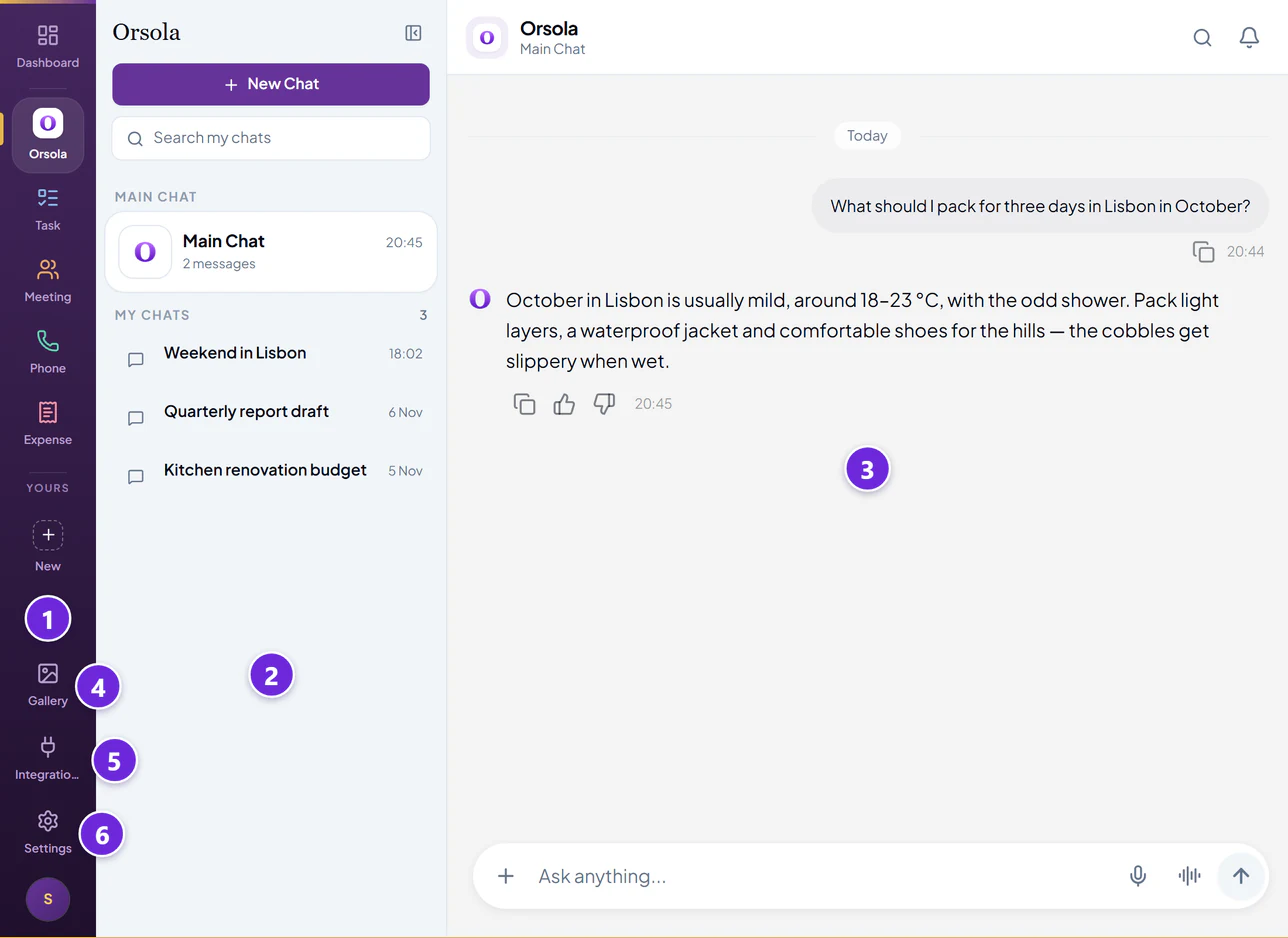
In a narrow window, such as a phone's browser, you see one part at a time. The rail becomes a bar along the bottom of the screen, and Back returns you from the work area to the list.
Two things called Settings
Settings in the top menu is your account. Settings on the rail is Agent settings: the language and voice every agent uses — see choose how Orsola sounds.
Where to find things
| You want | Go to |
|---|---|
| Your name, photo, time zone, app language or two-step verification | Profile, in your account menu |
| Your plan | Subscription, in the top menu |
| Invoices and payment history | Billing, in the top menu |
| The theme, notifications, signed-in devices or your data | Settings, in the top menu |
| Connected accounts | Integrations, on the rail |
| Your files, images and recordings | Gallery, on the rail |
Where to go next
Ask your first question if you have not yet, and choose the right agent for the job explains what each one on the rail is for.