



Invoices, receipts, and payment methods
Find a receipt, export your payment history, and change which card you pay with.
Find an invoice or receipt
Open Billing and go to Payment History. Every payment is listed with its date, description, amount, plan and status.
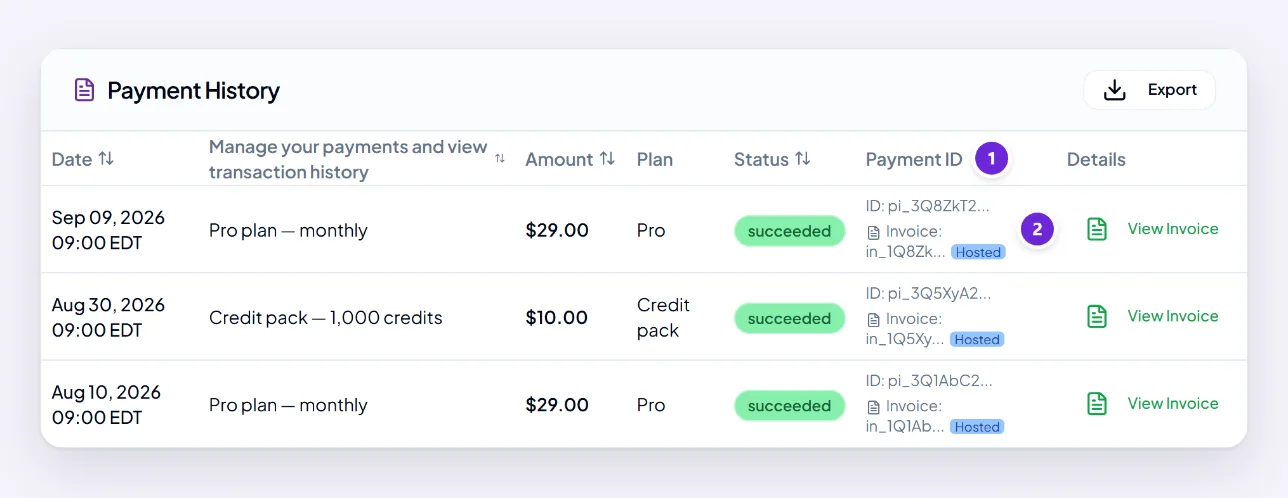
View Invoice on a row opens the invoice for that payment — that is the document to send to whoever handles your expenses.
Each row also carries a Payment ID. If you ever contact us about a specific charge, that is the single most useful thing to include.
Export your payment history
Export takes the whole history out as a file, which is easier than copying rows at the end of a quarter.
Your Billing page also shows your current balance, total credits and debits, and recent transactions — useful when a charge does not look like what you expected.
Add or change a card
Payment Methods, on the same page, is where cards live. Add a new one there, and remove one you no longer use.
Do it before the card you are replacing expires. A renewal that fails suspends access until it is sorted, and fixing it afterwards takes longer than changing it in advance.
Card details are handled by the payment provider rather than stored by Orsola, which is why you re-enter them rather than editing a saved card in place.
Choose which card is used
If you have more than one, set the one you want used for renewals and top-ups. Automatic top-ups use it too, so it needs to be a card that will still work unattended.
If a charge looks wrong
Check Payment History first — a charge that surprised you is often an automatic top-up you set up earlier, which appears as a credit purchase rather than a subscription payment.
If it still looks wrong, get in touch with the Payment ID, the date and the amount, and choose the Billing topic so it reaches the right people.
Where to go next
Payment failed or card declined? if a payment did not go through.