



Log a receipt or an expense
Send a receipt and have the amount, date, and category pulled out for you.
Send it a receipt
The fastest route, and the one worth building a habit around: photograph the receipt and send it.
- Open Expense, or any conversation.
- Attach the photo — Camera takes one there and then.
- Say what it is if it is not obvious: "client lunch, put it under meals".
Orsola reads the picture and pulls out the amount, the date, the merchant and a likely category. A photo of a paper receipt works; so does a PDF receipt from an email.
Expense tracking is on every plan, Free included.
Check what it read
Look at the amount, the date and the category before moving on. Reading a creased receipt is exactly the kind of task that is right most of the time and wrong occasionally, and a wrong figure is easier to fix now than at the end of the quarter.
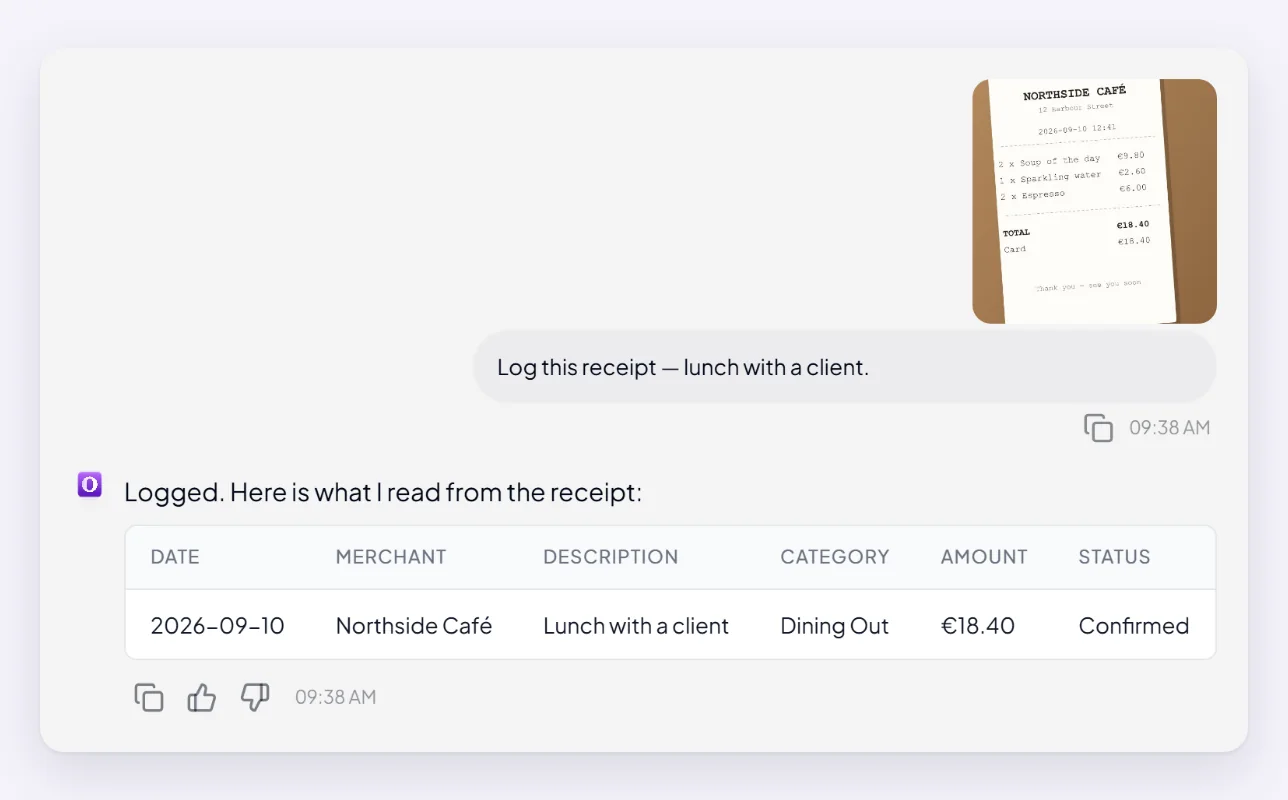
Correct it in the conversation — "the total is 42.60, not 4260" — or edit the entry directly. Expense filed under the wrong thing? covers corrections.
Add one by hand
No receipt, or a payment with no document at all: open Expense Management from your Dashboard and choose Add expense. The fields are amount, currency, date, merchant, description, category, payment method, notes and tags — only the first few matter for most entries.
You can attach the invoice file to the entry too, which keeps the evidence with the record.
Or just say it: "log £14 for parking yesterday".
Categories
Every expense gets a category, and that is what makes the totals useful later. Orsola picks a likely one; correcting it when it guesses wrong is worth the two seconds, because a month of miscategorised entries makes the summary worthless.
You can manage categories on the Categories tab of the Expenses page, and set budgets against them under Budgets.
Where to go next
See where your money went is the payoff for logging consistently.